Word has a habit of “helping” you in ways that slow you down — auto-selecting entire words when you just want a few characters, pasting with formatting you don’t want. Here are the settings and shortcuts that made my report writing noticeably faster.
Disable Smart Selection
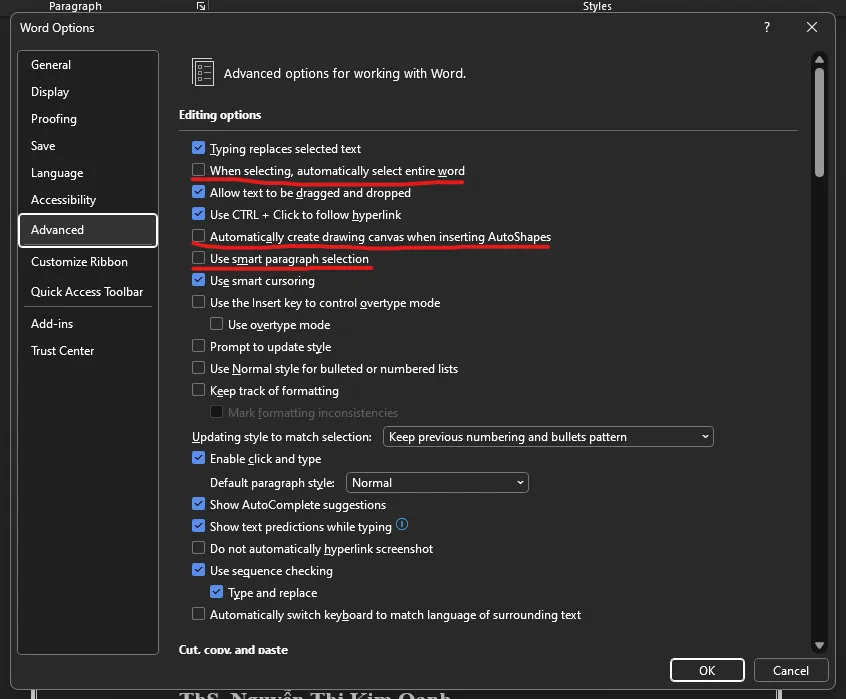
When selecting text in Word, it often auto-selects entire words or newline characters. This can be annoying. To disable it, go to File -> Options (bottom-left) -> Advanced and uncheck the items marked in red:
Shortcut for PasteTextOnly
Sometimes you need to paste text into Word but it carries over formatting. To avoid this, set up a shortcut for paste-text-only. Steps:
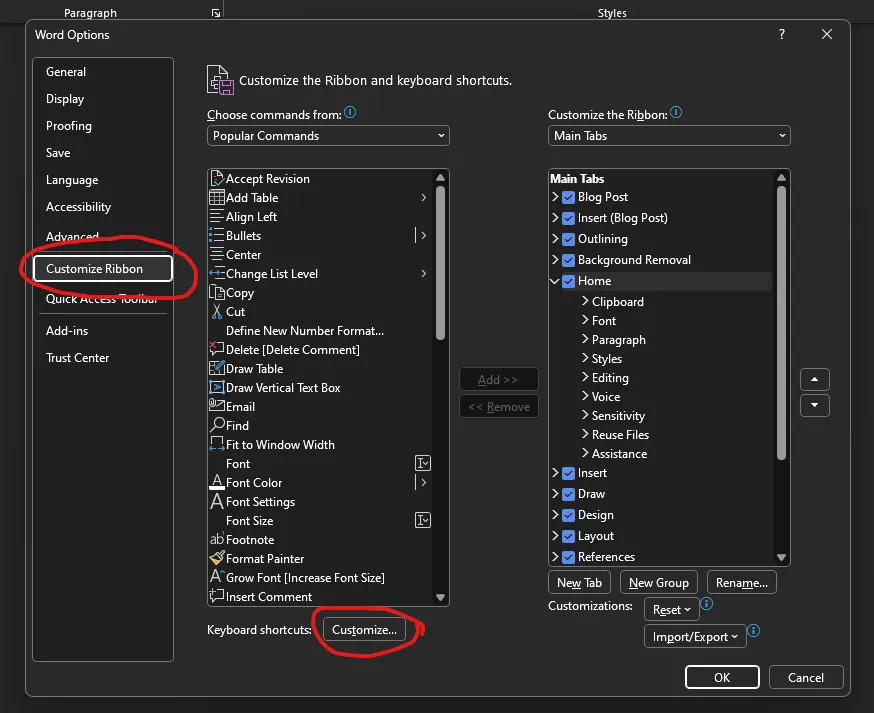
- Go to File -> Options -> Customize Ribbon -> Keyboard shortcuts -> Customize…
In the Customize Keyboard box (used to set shortcuts for Word commands), find the PasteTextOnly command following steps 1 and 2 in the image. At step 3, click the field and press the shortcut you want (typically Ctrl + Shift + V), then click Assign at step 4.
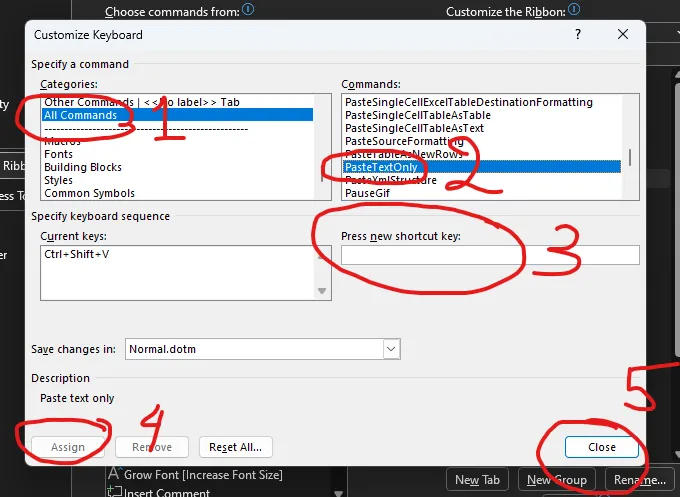
Done. From now on, to paste text without source formatting, press Ctrl + Shift + V instead of Ctrl + V.